
Cloudstream (Cloudstream 3) is a popular free streaming app on Android, PC, Firestick, and Android TV/Google TV.
It offers HD and 4K movies/TV shows with subtitles. However, users sometimes find that cloudstream subtitle not working or don’t sync properly while watching.
This can ruin the viewing experience, if you rely on subs to understand content in regional languages. Common causes include disabled subtitle settings, unsupported video sources, or timing issues.
In this guide, we explain why Cloudstream subtitles not working and provide easy step-by-step fixes for all devices. We cover every issue from no subtitles at all, to out-of-sync or garbled text so you can quickly get your subtitles working again.
Common Cloudstream Subtitles Not Working Problems
| Problem | Description |
|---|---|
| Subtitles not loading | Subtitles don’t appear on screen. This can happen if subtitles are turned off in settings, or the chosen video has no subtitle track. |
| Subtitles out of sync | Subtitle text is ahead of or behind the audio/dialogue. A timing offset is needed to sync them properly. |
| Wrong language shown | Subtitles appear in an unwanted language (e.g. always English or wrong regional language). The auto-language setting may be picking the default. |
| Garbled or strange text | Subtitles show weird symbols or garbled characters. This often happens due to wrong encoding or a corrupted subtitle file. |
| Subtitle option missing | The “Subtitles” menu or “Load from file” option is not visible on the player. This can occur on some devices if the UI focus is lost. |
| Font/size issues | Subtitle text is too small, too large, or low contrast (e.g. white on white). Incorrect styling can make subtitles unreadable. |
| Casting errors | When casting from Cloudstream (e.g. via Chromecast/Firestick casting), subtitles may not appear or remain stuck on one language. |
| App crashes when loading | Cloudstream freezes or crashes when subtitles are loading. This could be due to memory limits or outdated app version. |
| No external subs found | Cloudstream fails to download or find external subtitles for some content. This may mean no providers have subtitles for that title. |
These are the most common issues. The next sections show how to fix each problem step by step on any device (Android, Windows PC via emulator, Firestick, or Android TV).
Subtitles Not Loading
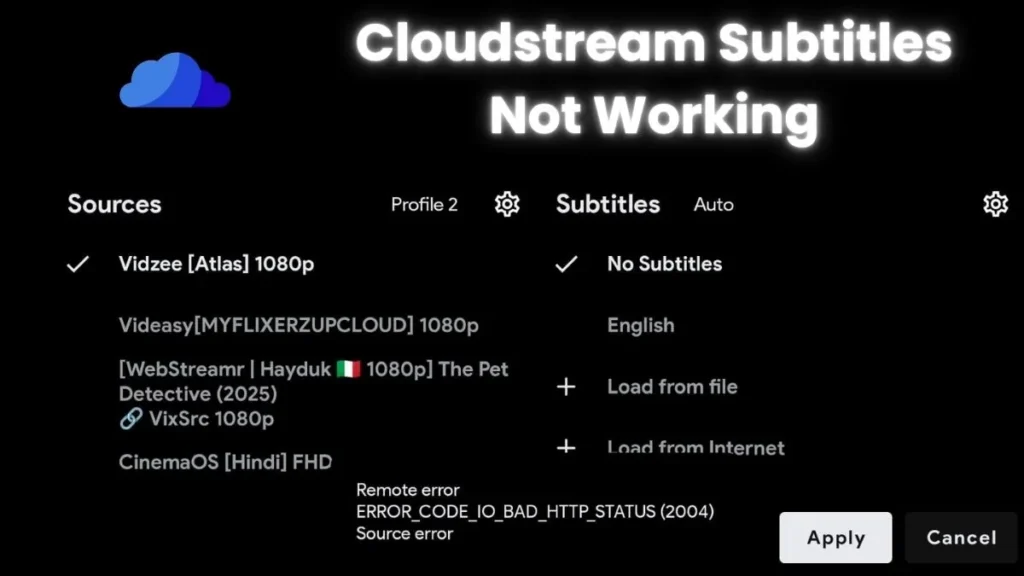
If no subtitles appear, follow these steps on your Android phone/tablet, PC emulator, Firestick, or Android TV.
Step 1: Enable subtitles in Cloudstream settings.
Open Cloudstream and go to Settings → Player (or Video) → Subtitles.
Make sure “Show Subtitles” (or similar option) is turned ON. If this was off, enabling it will often immediately show subtitles.
Step 2: Try a different source/link
Not all streaming links include subtitles. If one source has no subs, try another server or extension link for the same content.
For example, play the same movie from a different provider listed under Sources. Often one link has subtitles while another does not.
Step 3: Update Cloudstream and extensions
Outdated apps or extensions can cause subtitle bugs.
Go to Cloudstream Settings. Then extensions (or Repositories) and tap Check for Updates.
Also install the latest Cloudstream APK from its official site cloudstreamapk.in.
Using the newest version ensures bug fixes and better subtitle support.
Step 4: Clear app cache
On Android or Firestick. Go to Settings (device) → Apps → Cloudstream → Storage and tap Clear Cache.
This resets temporary files. (On PC emulators, closing and reopening Cloudstream has a similar effect.)
Step 5: Stable internet or VPN
Ensure your connection is working. A weak connection might cause subtitles (which often load from the web) to fail.
If you suspect a regional block, try using a VPN on Android/PC to see if subtitles appear.
Step 6: Restart Cloudstream/App/Device
Sometimes simply restarting the app or device clears glitches.
Exit Cloudstream, reboot your phone/TV/Firestick/PC, and try again.
Step 7: External player fallback
If Cloudstream still won’t load subtitles, use its “Play with External Player” feature. Play the video on MX Player or VLC.
These media players have robust subtitle support and often succeed when Cloudstream’s internal player fails.
After each step, test if subtitles load. These steps cover virtually all reasons for missing subtitles.
Subtitles Out of Sync
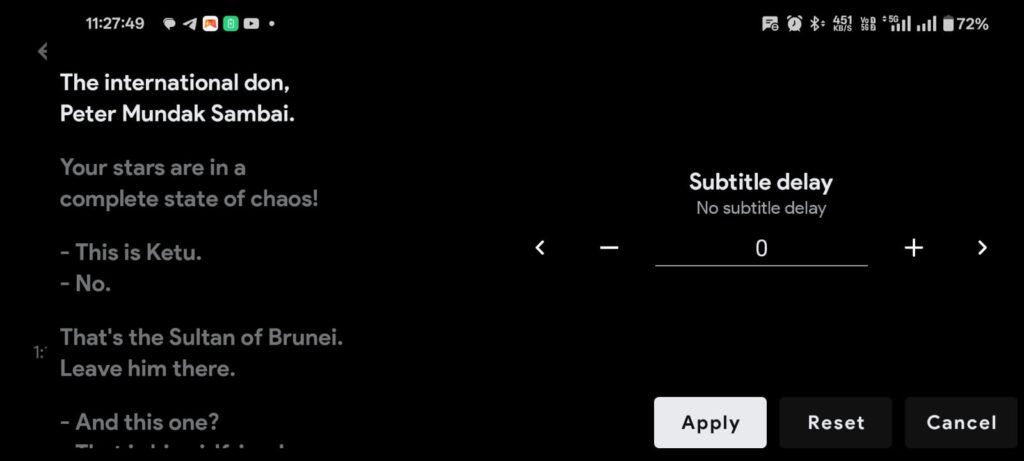
When subtitles appear too early or late, manually adjust their timing.
Step 1: Use Cloudstream Subtitle Offset
During playback, tap the screen to bring up the player controls.
Navigate to Subtitle or Sync Subtitles.
Cloudstream has a Subtitle Offset feature. Tap it.
Step 2: Adjust timing forward/back
In the sync menu, use the on-screen buttons (usually + or –) to shift the subtitles.
Move them a few seconds forward or backward until the text matches the dialogue.
Each tap will shift the timing slightly; find the right offset.
Step 3: Preview and confirm
Cloudstream may offer a preview. Play a few lines to ensure the subtitles align with speech. If needed, tweak again. The offset setting often stays saved for that video.
Step 4: Save or note the offset
If you frequently watch content from that source, remember the offset. Some Cloudstream versions apply it automatically next time. Otherwise, you may need to re-adjust each session.
Step 5: External tools
If manual syncing is hard, you can also load the video into a PC video player (like VLC) and adjust subtitle delay there as a workaround.
Using the built-in sync tool lets you fix any timing drift. After syncing, the subtitles should match perfectly.
Wrong Language or Garbled Text
If subtitles are in the wrong language or showing as gibberish symbols, try these steps:
Step 1: Choose the correct language
While the video is playing, tap the screen and select Sources → Subtitles.
You will see a list of available subtitle tracks (often by language). Pick the language you want.
If Cloudstream auto-selected English by default, manually switch here.
Step 2: Disable auto-language
In Settings → Player → Subtitles, find “Auto-Select Language”. Set it to None.
Now Cloudstream will let you manually pick each time.
Step 3: Try a different subtitle source
If the current subtitle file is incorrect or corrupt, delete it and try another.
For example, if you’re using an online subtitle provider and seeing gibberish, clear it from cache and reload subtitles via Sources → Subtitles.
Step 4: Check encoding
Garbled text often means wrong encoding (e.g. ANSI instead of UTF-8).
If you have a custom .srt file (see next section), open it in a text editor and save as UTF-8. Then load it again.
If Cloudstream can’t fix the encoding, use MX Player or VLC, which let you select subtitle encoding manually. By selecting the right language track and disabling unwanted defaults, you can fix most wrong-language or symbol issues.
External Subtitle Files
Cloudstream allows you to load your own subtitle (.srt) files if the built-in subs are missing or wrong:
Step 1: Place the .SRT file on your device
Download or copy the subtitle file and save it in your device storage (e.g. Downloads folder).
On Android phone/TV, you can use a file manager; on Firestick, copy via USB or a network share; on PC, put it in the emulator’s shared folder.
Step 2: Start the video in Cloudstream
Play the movie or episode. While it’s loading or playing, tap the screen to open the video menu.
Load from file: Go to Sources → Subtitles → Load from file. This option appears alongside the list of available subtitles.
Cloudstream will open a file picker. Browse to where you saved the .srt file and select it.
Step 4: Confirm and adjust
The subtitles should now appear. If they are out of sync, use the Sync Subtitles tool as above. If they still look garbled, ensure they are in UTF-8 encoding.
Some devices may not persist the file after app restart. If subs disappear later, repeat the loading step.
Using Load from file lets you add any subtitles you have. This method works on Android, PC emulators, Firestick, and Android TV alike.
Tips to Avoid Subtitle Issues in Cloudstream APK
To minimize future subtitle problems, follow these best practices.
Cloudstream & Extensions updated
Always use the latest Cloudstream version and update all repositories url and extension regularly. Developers often fix subtitle bugs in updates.
Use official or trusted builds
Avoid unofficial versions of Cloudstream. Stick to the official Cloudstream 3 APK, as third-party mods may break subtitle functionality.
Clear cache regularly
Periodically go to device Settings → Apps → Cloudstream → Storage and Clear Cache. This prevents accumulated junk from causing glitches.
Not enough free storage
Low storage on your device can disrupt subtitle downloads. Keep at least a few hundred MB free so Cloudstream can download and store subtitle files.
Stable internet/VPN
A good internet connection helps Cloudstream fetch subtitles smoothly. If subtitles are region-locked, a VPN can help reach subtitle servers.
Reliable content sources
Some obscure streaming links have poor subtitle support. If possible, use popular content (from working extensions) or add reputable repositories/extensions.
Software decoding
In Cloudstream Settings → Advanced/Playback, turning on Software Decoding can help if video or subtitle playback is jerky.
Before a long watch session, open the first episode or movie and confirm subtitles work. This way you catch issues early and can fix them without missing content.
Following these tips after updating and avoiding shady versions and will greatly reduce subtitle headaches in Cloudstream apk.
When to Use External Players Like VLC or MX Player
Cloudstream’s built-in player handles most videos, but sometimes a dedicated video app works better.
Complex subtitles
If subtitles still won’t sync or display correctly in Cloudstream, use MX Player or VLC. These apps have advanced subtitle support, letting you manually set encoding, adjust sync, or download subtitles.
Add-ons and encoding
VLC and MX allow you to load subtitles, change character encoding, and even search subtitles online. For non-English content (e.g. Indian regional movies), external players often find or handle subs better.
Performance
On older devices, Cloudstream’s built-in player may lag with 4K video and subtitles. Playing the video in a lightweight app like MX can reduce stutter while keeping subtitles.
Use “Play with External Player” option
In Cloudstream’s player (often in the More menu), select “Play with VLC/MX Player”. The video will open in your chosen app along with subtitles if available.
Play the video on MX Player or VLC via the ‘Play with External Player’ option. External players often fetch subtitles more accurately.
Subtitles not embedded
If Cloudstream finds no subtitles, try copying the streaming URL and pasting it into VLC (many Android TV boxes allow this). Then use VLC subtitle menu to load or download subtitles.
In summary, whenever Cloudstream fails to show or sync subtitles, switching to VLC/MX is a smart workaround.
FAQs
Why aren’t any subtitles showing in Cloudstream?
First check that subtitles are enabled in Settings→Player→Subtitles. Also ensure the link you chose actually has subtitles. If a source has no subs, Cloudstream can’t show them.
How do I fix subtitles that are out of sync?
Use the subtitle Offset/Sync feature built into Cloudstream. While playing the video, open the subtitle menu and shift the timing forward/back until dialogue matches. This tool adjusts the delay so the subs line up correctly.
Subtitles are in the wrong language or always English. What do I do?
Go to the player’s Sources → Subtitles menu and manually pick your preferred language. Also disable auto-language selection: in Settings→Player→Subtitles set Auto-Select Language to None. Then Cloudstream will not force English and let you choose each time.
Can I load my own .srt subtitle file in Cloudstream?
Yes. Save the .srt file on your device, then while playing the video choose Sources → Subtitles → Load from file. Browse to the file and select it. The subtitles from the .srt will now show. This works on Android, Firestick, or PC.
When should I switch to VLC or MX Player for subtitles?
If Cloudstream’s player won’t display or sync subtitles even after troubleshooting, it’s time to use an external player. Apps like MX Player or VLC have robust subtitle support and let you tweak encoding and timing. They often succeed where Cloudstream’s player fails, especially for tricky subtitle formats.
Conclusion
Fixing subtitle issues in Cloudstream doesn’t have to be complicated. In most cases, the problem comes down to a simple setting, a wrong subtitle source, a player glitch, or a device-specific limitation. Following the simple step-by-step fixes in this guide, whether you’re on Android, PC, Firestick, or Smart TV you should be able to get subtitles working smoothly again.
Always use reliable subtitle providers, keep Cloudstream updated, and don’t hesitate to switch to an external player like VLC or MX Player when you need advanced subtitle control. With the right settings and a few quick tweaks, you can enjoy a smooth, high-quality streaming experience with accurate subtitles every time.
If your subtitles are still not working after trying everything, don’t worry, Cloudstream communities and GitHub pages often have updated fixes and patches. Stay patient, keep your app optimized, and happy streaming.